The Data Management page provides you with a streamlined way to enter, re-enter and monitor data for the indicators you have selected.
1. Selecting a reporting unit and indicators to view or input data
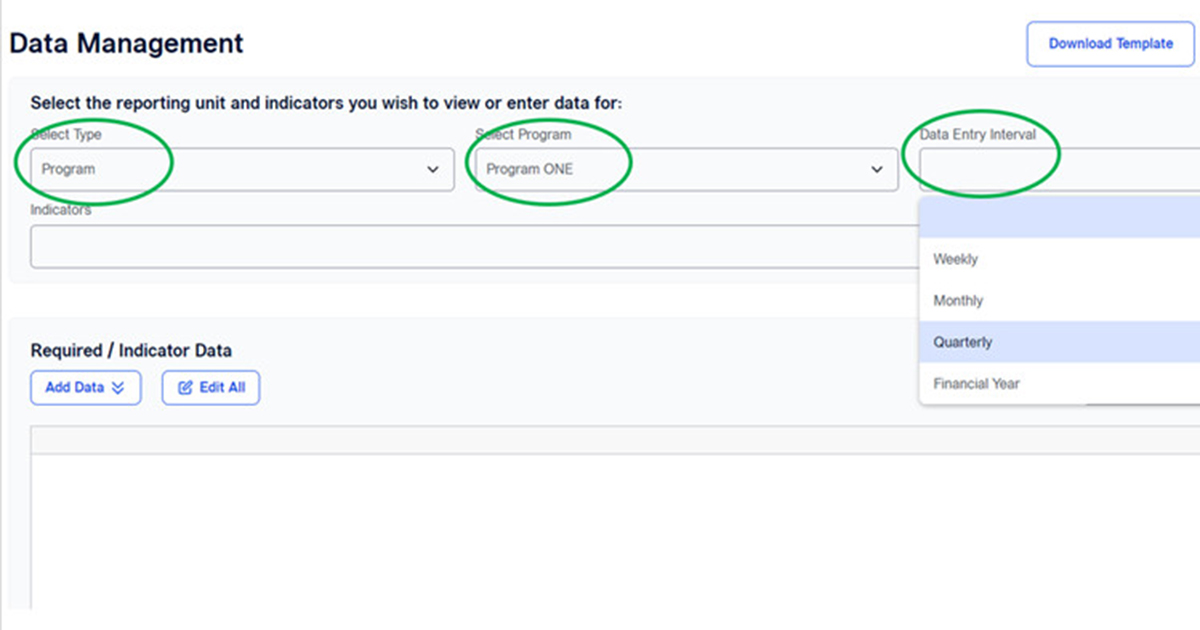
- Click on and select Type (Social Enterprise/Program/Project) and Reporting Unit (in this example, Program ONE) from the drop-down menu.
- Click on and select a Data Entry Interval.
2. Viewing indicators and data required
- Once you select the reporting unit and data interval, indicators related to 'Program One' with quarterly interval will appear in the Indicators field.
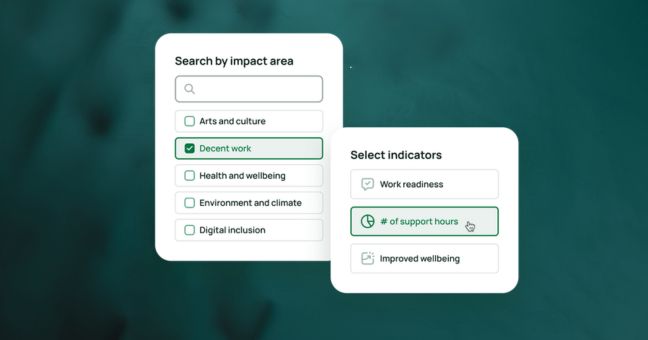
- Click on the drop-down menu from the Indicators field to see indicators. You can unselect indicators you do not plan to use or change at this time.
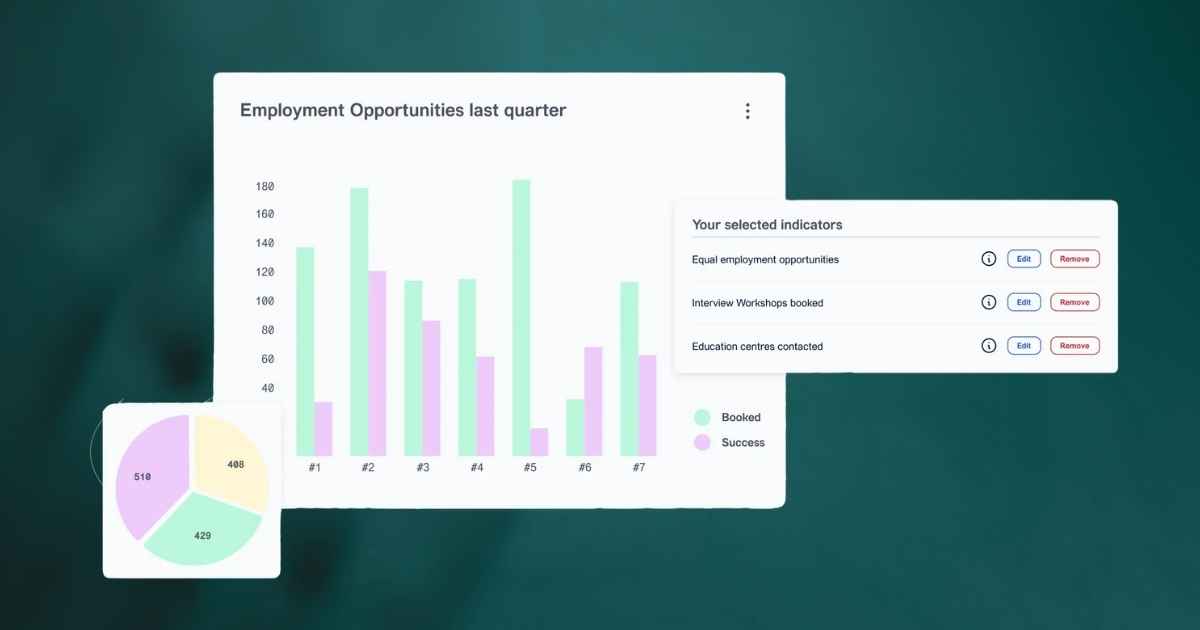
- Required/Indicator Data for the selected indicators will appear on the table for data to be added. In this example, we have two indicators: the number of social enterprise participants who reported increased confidence and skills, and the percentage of social enterprise participants who reported increased confidence and skills.
- Where an Indicator Data is calculated and does not need to be manually added, you can click on the 'i' icon to see details of the formula used.
3. Entering data for indicators
- Click on 'Add Data', and it will bring up a calendar to select the relevant reporting period for your selected indicator (in this example, you are adding quarterly data).
- Once you select the reporting period, a new column will appear on the table for data to be added. You can enter data directly in this space.
- Here, we have added that 25 social enterprise participants reported increased confidence and skills across Q3, 2023; as well as entered '40' to the number of social enterprise participants.
- The percentage of social enterprises participants who reported increased confidence and skills was automatically populated from the two numbers entered.
- Some indicators share the same Required Data, which you only need to enter once. For example, there are other indicators that will need data on the number of social enterprise participants. When you enter this shared data in one space, it will be auto-populated in all relevant spaces.
- Click on 'Add Data' to begin a second reporting period. This will create a new column for you to add data. Here, you can see we have added reporting periods for the first three quarters of 2023.
- You can add multiple reporting periods/columns, then click on 'Edit All' which will allow you to enter or change data in any column.
- The 'Edit All' button will change to 'Edit Latest Only' and all data fields are ready for editing.
- Click on 'Edit Latest Only' if you want to edit data for the latest reporting period